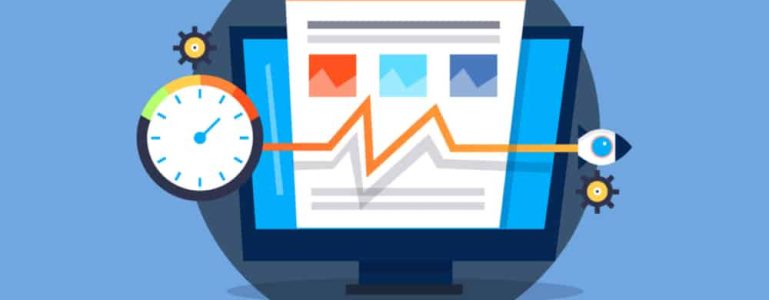
There’s nothing worse than a slow loading website. When your website’s slow the disadvantages can be devastating regarding traffic numbers. Keep your visitors happy with a well optimized and smooth running website!
Speeding your website up is a great way to gain return traffic, if the user is satisfied with the efficiency and load time of your website’s page speed they’ll keep a mental note of that.
This guide will break down the steps involved to optimize your website’s page speed correctly. It will be focused on the more technical aspects of your website e.g. page size, load time, image optimization etc. If you’re looking to optimize your website for search engine purposes here’s our guide on just how to do that.
In this post:
Online Tools to Test Your Websites Speed
As you begin the optimization process, we’ll need something to measure the progression and improvement of your website with.
Using 2 main online services you can get an idea of the page size, loading time, ping and number of other useful insights that will guide you through the process. Constantly reflecting back to the online tests will ensure you’re moving in the right direction and from there, you can visibly track your progress.
Pingdom– Monetizes your websites availability and more importantly performance for free
Google Page Speed Insights– Analyzes the content of a webpage, then generates suggestions to make that page faster.
Caching Plugin
Typically, when you install a fresh version of WordPress on your domain, you’re instructed to download the stock standard plugins for your WordPress version. One of these preinstalled plugins is a caching plugin.
A cache stores data, and by using a caching plugin return users won’t have to re-download all the aspects of your website again because its stored within their browsers cache. It’s a great way to keep return visitors happy as they’re speed essentially only got better from their first visit.
9 times out of 10 the caching plugin you have preinstalled isn’t the most optimal for your website. I recommend you uninstall the existing caching plugin and spring for the high performing WP Fastest Cache Plugin. It’s an amazing free caching plugin that I’ve seen great results with.
Once you’ve installed WP Fastest Cache navigate to the plugins settings from the WordPress dashboard, there should be a navigation link named “WP Fastest Cache”. Once you’re there you should find a selection of settings. These are the optimal settings found to be the best performing for most websites, but as confirmation, monitor your own sites performance (using Pindgom or Google Page Speed Insights) after every step to ensure the best performance for your site.
Image Optimization
How many images or videos are using on your website? If you’re using images are they well optimized to reduce your page size?
The content you include on your website is essentially downloaded by the user when they visit your website. Meaning they have to wait until all the content is downloaded before they can proceed effectively. If you have large images or animations uploaded on your website they need to be compressed to ensure your websites page size is as small as possible. By doing so your load time of each page decreases substantially.
Compressing your websites images is absolutely essential as it speeds up the pages on your website. By compressing an image, you’re reducing its size and a smaller file size means a faster download time for the user!
A great free plugin to invest in is Imagify. Using the plugin, you can compress images manually or bulk compress for a comprehensive speed up on your website. I recommend bulk compressing your images using the “Normal” compression method. That way you’re not losing too much quality with the compression and you can always go ahead afterwards and compress larger sized images manually.
Manual WordPress Optimization
Now that you’ve chosen the best performing caching plugin, as well as optimized the images on your site. The only remaining step for a basic level optimization is to manually clean up your WordPress installation.
Keeping a well kept WordPress installation has many benefits, ranging from a decrease in plugin conflicts to a potential performance boost. It’s definitely a good idea to maintain an installation with only your necessary elements. For this step we’ll be focusing on your:
- Pages
- Images
- Plugins
- Themes
Pages
Go ahead and navigate to your ‘Pages’ tab of your dashboard. Are there any drafts or pages that have no links to them? Delete any unnecessary pages that are no longer needed for your website. Although the pages may seem insignificant, keep in mind WordPress automatically gives a published page a slug. Therefore, even if you have no links to the pages, users can reach them (given they’re public). Keep it simple and remove any unnecessary pages from your website.
Images
Assuming your images are optimized, go ahead and navigate to your ‘Media’ tab from WordPress. Again, if there are any unnecessary images or images that aren’t being used, delete them.
Plugins
Keep only the necessary plugins in your collection. Having many plugins activated at the same time has a very high chance of creating conflicting errors between multiple plugins. I’d recommend deleting them on top of deactivating them as there are still issues that can arise from various plugins that have been ‘deactivated’. For this step I caution you to be careful as you want to be sure you definitely don’t need the plugin before you remove it.
Themes
You may have begun your development process by testing various themes. If that’s the case there’s a very high chance they’re still installed on your version of WordPress. Go ahead and remove the themes you aren’t using in the ‘Themes’ subsection under customize.
Finishing Up
If you’ve been following the steps until now you should have a clean WordPress installation; Utilizing a fast performing caching plugin including well optimized images.
Don’t undermine the importance of a lightning fast website. It comes off incredibly professional and keeps your visitors satisfied and encouraged to continue browsing your website. Don’t forget to keep your plugins updated to ensure optimal performance and reduce issues that may arise from outdated plugins!